There is a very important aspect to email messages that tries to ensure good reputation, deliverability, and security for email messages which are e-mail records such as SPF, DKIM, and DMARC. These records alone aren’t always enough alone, but it is a foundation stone because without making these records strong, you can’t even ensure consistently healthy email transactions for your organization.
Other techniques and technologies we will be talking about here will include marking external emails, using email secure gateways, allow and block listing, and finally and most importantly security awareness training for all users in your organization. After all, security is the responsibility of EVERYONE.
External Emails Tags: For whatever email delivery/handling technology your organization is using, such as Outlook, ProofPoint, or Gmail, there is an option to add a tag indicating an email is sent from a sender who is outside the organization. This is a simple warning message to let the user know and perhaps it will get them to pay extra caution to context and also urges them to verify where it came from and if it is expected. The following screenshot is an example of what this looks like:

SPF (Sender Policy Framework) Records: This just like DMARC, and DKIM is a TXT record that you add in your domain. Before we dive into particulars of each record, let’s look at what this process looks like briefly:
One of the common platforms to manage a domain is using a DNS service like Route53 by AWS. You would create all of these records inside of your domain in there by adding TXT records. Now what you need to understand here is there are components to every domain such as to “freecybereducation.com” domain. Essentially, these DNS records specifies the connection between your domain name and corresponding IP addresses.
Here is what freecybereducation.com SPF record looks like:
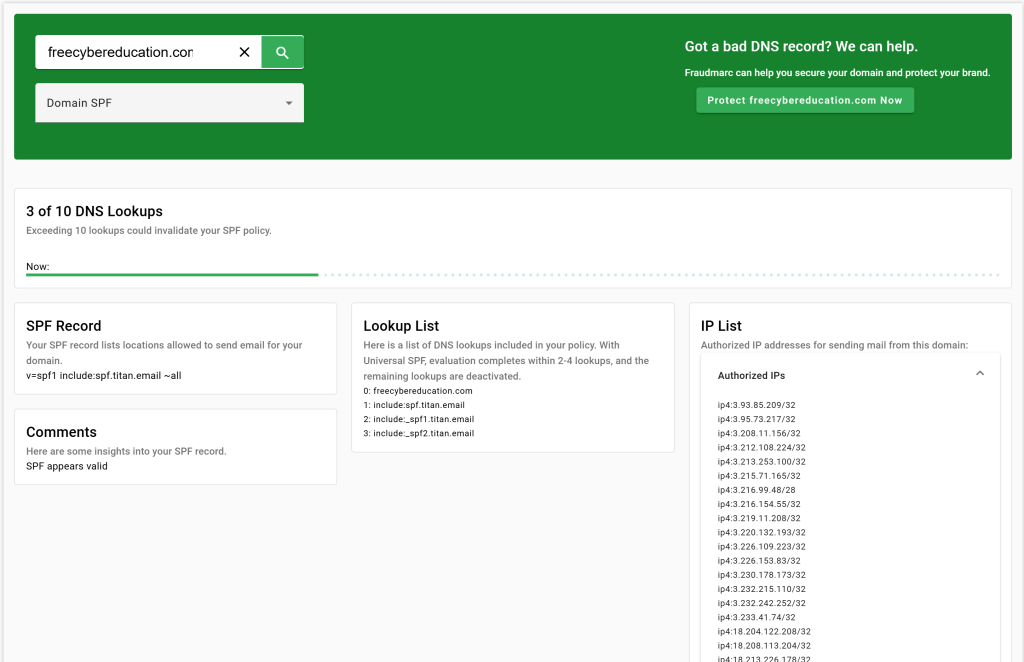
The format of SPF record can be something like shown in the example above or it can be specific IP addresses for servers such as the following: “v=spf1 include: [IP Address, Another IP Address]…” Using domain names instead of specific IPs indicates that you will authorize ALL IP addresses under the specified spf domain such can also be seen in the screenshot above if we pay attention to “IP List” section.
Great! So what does this do? I am sure you have already figured the answer out, but in simple words, Receiving mail server checks if the IP address of Sending mail server is a valid IP address under the sending domain’s SPF records. The result of SPF will be “pass” or “fail.” If the result is “fail”, then you better assume this email is coming from a spoofed domain and needs extra caution when investigating. See the example below for what SPF result looks like:

DKIM (Domain Keys Identified Mail) Record: Welcome to cryptography. In case you do not know how asymmetric cryptography works (we will visit this in the future) there are two pairs of keys in the play. One is public key and other is a private key. Private key is not accessible by everyone but public key is. Therefore, at the time of sending an email, sender’s server will sign the message with their private key. Once email is received, your receiving server can verify the sender using the public key of sender’s domain. This process will verify the integrity of the message.
One dangerous example of this can be if you are a victim of MiTM (Man in the middle) attack. We will visit what this is later on in details but it is when someone is able intercept all traffic coming to you from outside sources. The attacker can first receive this message before you do, modify it and send you the modified message to trick you. When this happens you should expect to DKIM result to be “fail”. After all, this means integrity of the message has been violated.
Here is an example of what DKIM record format will look like:
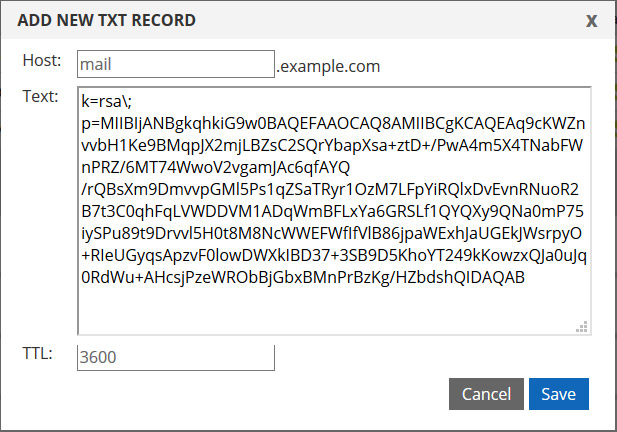
Pay attention to “rsa” which is key type aka cryptographic algorithm that is being used, and after “p=” is what the key looks like.
DMARC (Domain-based Message Authentication Reporting and Conformance) Record: In DMARC, you can specify what happens when both SPF and DKIM record results in “fail.” You have basic options such as none (take no action and continue to deliver), quarantine (deliver but quarantine), or reject (do not deliver, discard). In my opinion, best practice here is to set this to “reject.” You probably do not want to engage with a message that comes from an unverifiable source. Here is an example of what DMARC record looks like:
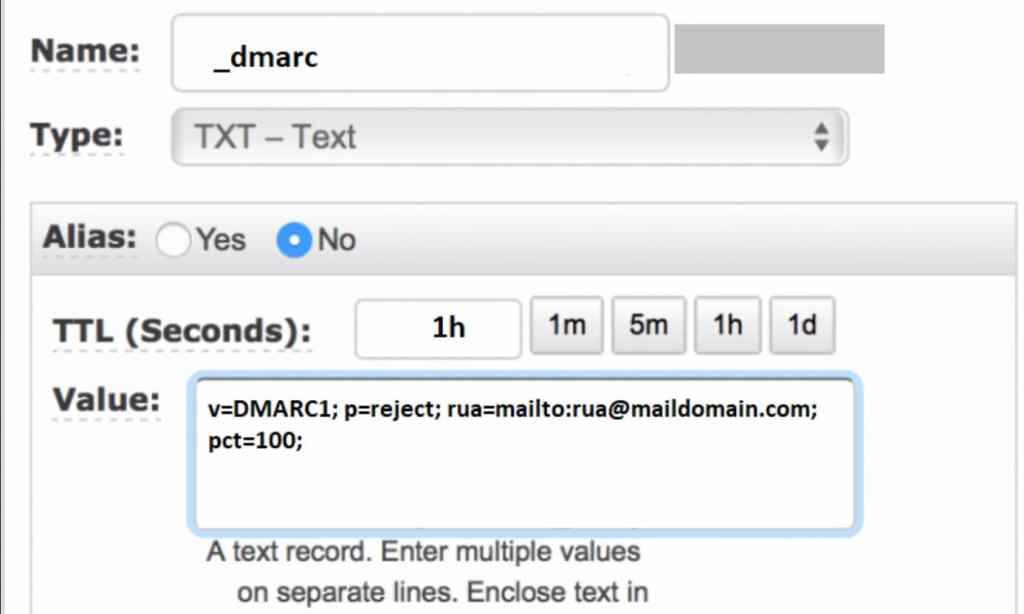
Besides of action to take, you can also specify if you want DMARC reports to be delivered in a mailbox for review. This is exactly what “rua=mailto:” section does. If you want to understand what these options do or even generate one with your desired options, you can use help from OSINT tools like MXToolBox.
FINAL BOSS Security Awareness Training: This is the final boss of email security in an organization. I call this the final boss because this sounds like just providing a simple training of what to do and what not to do to all users but believe me when I say it is the hardest task ever to enforce good habits to users especially if they are not very tech savvy.
I worked in an organization where there were a lot of users that were simply so ignorant and never understood the danger they put everyone in until it got to the “Well! It is too late…” situations. Of course, there is something to be said about enforcing a good security culture in an organization that starts from the CEO of the company and gets enforced strictly all the way down to an intern in the company. Ever heard of “leading by example?”
Anyways, I am sure I will dedicate a page just for my rants eventually, but I am sure you understand why this is a difficult preventative control to implement. Regardless, even if some users get it and with it, then it will help to stop a lot of attacks that snuck through the cracks of all your security tools, records, etc. You might have noticed there is button called “Report Phishing” in all email solutions. Teaching people to click that button is very important. But, of course this requires them to understand when to click this button. Therefore, this training you are providing to all users in the organization should cover common characteristics of a phishing email such as:
1- Unknown sender address.
2- Grammar mistakes.
3- Tone of language being used (Ex: URGENT: “Sign these documents” or “Your Account Will Be Closed due to Late Payments”).
4- Suspicious URLs, attachments.
5- Reply-to address that forward replies to an external email addresses.
It is important to practice the skill of spotting phishing emails for all users on a very regular basis and it is also very important follow-up with them if they click, and worse if they do what the phishing email tells them to do. Many organizations will perform phishing campaign on the regular basis to help educate all users.
Email Secure Gateways: This can be an additional layer that can be placed between your email handling solution and internet. For example you can have the following mail flow:
For inbound emails: Internet > Email Secure Gateway > Outlook
For outbound emails: Outlook > Email Secure Gateway > Internet
What is the benefit of doing this? Well, it is a filtering and scanning in place before anything enters and leaves your organization. For example, let’s talk about ProofPoint; they can sandbox and scan all attachments and URLs on a received message before it continues to deliver it to an user. If it spots anything suspicious, then it will proceed to quarantine the message and will not let it reach to user’s mailbox. You can see how this can save your organization ton of work and pain.
Of course, there is more to it. It can block emails containing executables, filter spam, and even create sinkholes (navigates the user to a safe landing website when they click a malicious link). You can read more about it here.
This covers majority of what we need to know regarding how to prevent phishing attacks. Next, we will explore how to remediate phishing attacks.
 Free Cybersecurity Education